Stellar offers two ways to recover an Outlook mailbox: a browser service that minimizes setup, and a Windows application that puts individual messages and export settings within reach.
A damaged email archive creates an immediate question: can you retrieve the correspondence you need? Stellar Online PST Repair and Stellar Repair for Outlook approach that problem differently. The online service simplifies the operation to uploading, processing, and downloading. The desktop application adds a workspace for examining and selecting recoverable content.
For Windows power users and small-business IT, the choice is not simply free versus paid. It is how much you need to inspect before exporting, where processing should happen, and whether this is an isolated incident or recurring work.
Testing scope: We followed one corrupted test PST through online repair completion and its HTML report, then through Stellar Repair for Outlook Professional scanning, preview, export configuration, and saving in progress.
Two Recovery Workflows, Different Levels of Control
The difference becomes clearest at the preview stage. Online, we received a folder-and-count report. Stellar Repair for Outlook Professional displayed individual messages, their contents, and attachment filenames. The latter is more useful when finding a particular item matters more than simply obtaining another PST.
| Area | Stellar Online PST Repair | Stellar Repair for Outlook Professional |
|---|---|---|
| Processing | Uploaded to Stellar’s servers | Local Windows application |
| Input size | 500 MB Free; 5 GB Premium | No advertised PST-size cap |
| Preview | HTML folder tree and item counts | Folders, messages, body text, and attachments |
| Output | PST download | PST, MSG, EML, RTF, HTML, PDF |
| Selection | Automated repair workflow | Folder selection and export filters |
| Free access | One eligible PST, including download | Scan and preview; saving requires activation |
Both routes concern the mailbox, not just its email text. Our previews included non-email folders such as Calendar, Contacts, Notes, and Tasks. Desktop’s checkboxes also make the difference between examining a mailbox and selecting what to save particularly clear: an administrator can inspect broadly, then export narrowly.
Stellar Online PST Repair: From Upload to Results
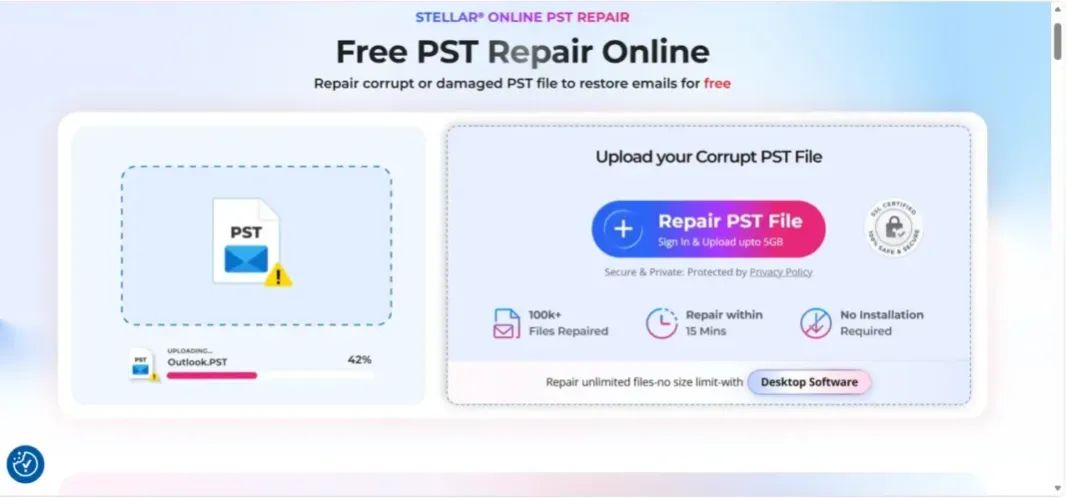
The public entry panel presents a prominent Repair PST File button and asks users to sign in. It also advertises processing within 15 minutes. That is a vendor estimate, not a result we measured.

After uploading the PST file, the service confirmed receipt and displays its size. A separate Start Repair button begins processing. Keeping upload completion distinct from repair initiation makes the sequence easy to follow.

The completion page subsequently reports that the file had been repaired and offers Preview and Save PST File. There is no maze of destination formats or recovery settings to navigate.

What the Online Preview Actually Shows
Preview produces a downloadable HTML report, opened locally in the browser. Its tree lists Inbox items,calendar items, contacts, journal items, notes, andtasks. It also shows items in a Deleted Items folder and offers a Lost&Found view.
Those numbers provide a useful inventory of what the service reports finding. They do not establish that every message is readable or every attachment intact. The report doesnot offer a reading pane for inspecting individual emails.

Stellar Repair for Outlook Professional: Inspecting the Mailbox Before Saving
The desktop application starts with a familiar Windows ribbon and a file-selection dialog. Our installation offered Profile List and Choose Mailbox Manually, with separate Browse and Find controls.

The resulting view uses three panes: folders on the left, a message list in the center, and the selected item on the right. Selecting Testing Mail exposes its sender and recipients, message body, and several attachment filenames. Unlike the online report, this let us examine content directly inside the repair application.
The desktop tree also shows Inbox , Calendar, Contacts, and Tasks, matching these folders in the online version report. Some entries appear in red for recovered deleted items.
The interface is functional rather than particularly modern. It puts useful controls together, although.
Search, Saved Scans, and Recovery Records
Several documented features extend the desktop product. Find Message searches by sender, recipient, subject, or a selected date. Matching messages can be opened individually and saved in one of the supported message-export formats.
Save Scan and Load Scan store and reopen scan information in a .DAT file, avoiding a fresh scan when returning to the same recovery. That file is a record of the scan, not the repaired mailbox. Log Report adds a savable record of the repair process.
For example, recovering one customer’s correspondence need not mean scrolling through every folder or exporting the entire archive. A targeted search can identify the relevant messages, while a saved scan provides a way to revisit the same recovery without starting the analysis again.
These are useful capabilities for a support technician who needs to investigate now and export later.
Export Formats, Deleted Items, and Filters
Clicking Save Repaired File opens six choices: PST, MSG, EML, RTF, HTML, and PDF. The alternatives to PST are useful when the task is extracting correspondence rather than reconstructing an Outlook archive.
The next dialog combins destination selection with Recover deleted items, Auto split PST file, and Apply Filter.
The filter dialog may exclude Junk E-Mail or Deleted Items, restrict messages to a date range, or omit specified senders.
Finally, the application enters Saving in Progress, identifying the folder and message being written

Performance, Requirements, and Data Handling
The desktop system requirements specify 64-bit Windows, at least 8 GB of RAM, and 250 MB for installation files. Stellar recommends 16 GB and 64-bit Outlook for large files. Importantly, Outlook must be installed to save repaired data; installation space does not include the source and output PSTs.
The online service needs no local Outlook installation. Stellar promises secure uploads and automated processing, with uploaded and repaired files deleted within 24 hours on Free or 48 hours on Premium.
For business use, the practical distinction is straightforward: online processing sends the mailbox to an external service, while desktop repair keeps the recovery workload local.
Pricing and Edition Differences
The browser-based Outlook PST repair covers one PST up to 500 MB, including download, so our sample fits its size allowance. Premium costs $29.99 per file and raises the ceiling to 5 GB.
Plans cost $79 for Professional, $149 for Technician, and $199 for Toolkit. G2’s pricing listing identifies those figures as one-year prices.

Stellar Repair for Outlook Professional is the baseline we used: detailed preview, folder selection, six save formats, filters, and automatic large-output splitting. Its trial supports scanning and previewing, but saving requires activation.
Technician adds MBOX output, direct Microsoft 365 and live Exchange export, configurable PST splitting, and compacting with attachment separation. Toolkit bundles additional utilities for OST conversion, splitting, compacting, mailbox merging, deleted-item recovery, and PST password recovery. Those extras were not tested here.
Repeat work changes the arithmetic. At the quoted prices, three Premium online repairs total $89.97 before taxes, exceeding the captured $79 Professional offer. Stellar Repair for Outlook Professional is not automatically the better purchase, because setup and licensing still matter, but per-file convenience becomes less attractive as jobs accumulate.
There is an important licensing detail beyond the headline price: Stellar’s policy defines its “lifetime” license as 10 years, with one year of complimentary support. It also describes subscription auto-renewal. These terms deserve attention when comparing a one-off online repair with longer-term desktop ownership.
Strengths and Limitations
Online PST Repair makes sense when minimal setup matters. Its main strengths are the clear sequence, an eligible free repair, and no local Outlook dependency. Its weaknesses are the file-size ceiling, upload dependency, and inability to inspect individual messages in the preview. It favors straightforward retrieval over investigation.
Stellar Repair for Outlook Professional offers the more informative recovery workspace. Message-level preview, selective export, filters, and saved-scan support give technicians more control. Against that, it needs a suitable Windows and Outlook setup, paid activation for saving, and more attention to settings. Reported resource demands on larger jobs also warrant realistic expectations.
Overall Assessment: Which Route Fits?
For a small, one-off PST that can be uploaded, the online service is the lower-commitment starting point. Our walkthrough reached a success report and a useful folder inventory without installing a repair application. Paying for desktop solely to obtain the same basic workflow would miss the reason to choose it.
Stellar Repair for Outlook Professional becomes more compelling when you need to read recovered messages before export, choose a subset, avoid external mailbox processing, or handle files outside the online limit. Technician and Toolkit are upgrades for specific destinations and maintenance requirements, not prerequisites for the Professional workflow shown here.