

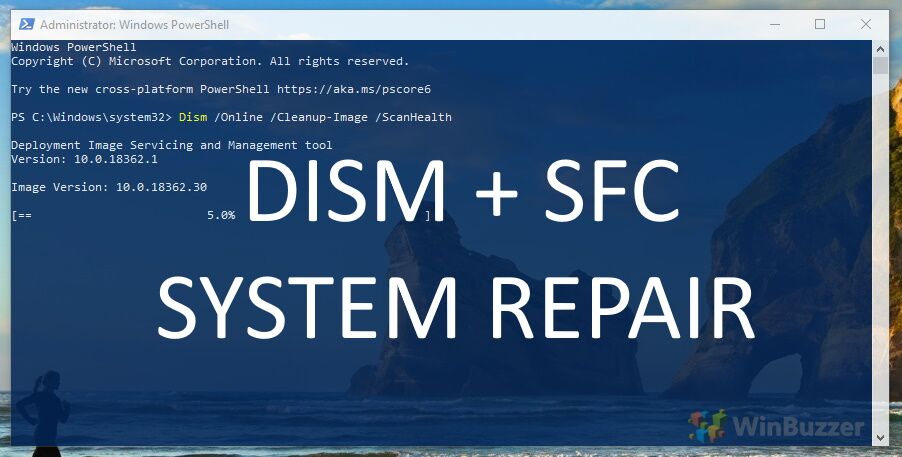
When your Windows 10 or Windows 11 computer starts exhibiting strange behavior, such as frequent crashes, Blue Screen of Death (BSOD) errors, or features that no longer work, corrupted system files are a common culprit.
These critical files, which are essential for the operating system to function, can be damaged by incomplete software updates, sudden power outages, driver conflicts, or malware. While these issues can be frustrating, you don’t have to immediately resort to a time-consuming system reset or a clean reinstallation of Windows.
This comprehensive guide will walk you through the official, Microsoft-recommended procedure for using two effective, built-in command-line utilities: Deployment Image Servicing and Management (DISM) and System File Checker (SFC).
We will first use DISM to repair the core system image that Windows relies on for its source files. Afterward, we will use SFC to scan for and replace any damaged files on your live system using that newly repaired image. Following this specific order is crucial and dramatically increases the likelihood of a successful repair, saving you from potential data loss.
To follow this tutorial, your user account must have administrator privileges, which are required to make changes to protected system files. The entire process is identical for both Windows 10 and Windows 11 and generally takes between 15 and 30 minutes to complete.
The exact duration will depend on your computer’s hardware speed and the severity of the file corruption. No third-party software is needed, and this process will not affect your personal files or installed applications.
Before You Begin: A Quick Checklist
While the DISM and SFC tools are designed to be safe and only operate on system files, it is always a wise precaution to back up your important personal data before making any significant changes to your operating system.
Ensure any critical documents, photos, or other files are saved to an external drive or cloud storage service before you proceed.
Why You Should Run DISM Before SFC
Understanding the roles of these two tools makes it clear why the order of operations is so important. Think of the Windows component store as a warehouse of spare parts for your operating system.
The System File Checker (SFC) tool is the mechanic that goes to this warehouse to get a clean part whenever it finds a broken one on your system. However, if the parts in the warehouse itself are damaged or corrupted, the mechanic (SFC) will either fail the repair or use another faulty part.
The DISM tool’s job is to inspect and repair the warehouse (the component store) first, ensuring it is stocked with pristine, reliable components. By running DISM first, you guarantee that when SFC performs its scan, it has a perfect source to draw from, making the repair effective.
 Please note: The process described below is the same in Windows 11 as it is in Windows 10. However, bear in mind that we’ll be using screenshots from Windows 10, so your UI may look a little different.
How to Repair the Windows Component Store Using DISM
The first and most critical phase of the repair process is to run the DISM tool. This command instructs Windows to scan its core component store for any signs of corruption.
If it finds any issues, it will securely connect to Microsoft’s Windows Update servers to download clean, original versions of the damaged files and replace them.
This step is fundamental for fixing deep-seated corruption that SFC, by itself, is often unable to resolve. This method has a difficulty level of Intermediate and should take 10-20 minutes.
-
Open Windows Terminal as an Administrator
First, you need to open a command-line interface with elevated permissions. Right-click the Start Menu icon on your taskbar or press the Windows + X keyboard shortcut to open the Power User menu.
From the list that appears, select Terminal (Admin). On some versions of Windows, this may appear as Windows PowerShell (Admin) or Command Prompt (Admin); any of these will work. When the User Account Control (UAC) window prompts you for permission, click Yes to proceed.
-
Run the DISM RestoreHealth Command
In the administrative terminal window that opens, carefully type or copy and paste the following command, ensuring there are no typos:
Dism /Online /Cleanup-Image /RestoreHealth.
Press the Enter key to execute it. The tool will initialize and begin its operation, displaying a progress bar.
⚠️ Note: This process can take a significant amount of time and may appear to pause or hang at certain percentages, such as 20% or 40%. This is normal behavior, so do not close the window or shut down your computer.
The step is complete once the process reaches 100% and you see the confirmation message: “The restore operation completed successfully.” This indicates that the component store is now free of corruption. If you receive an error, ensure you are connected to the internet, as DISM needs it to download replacement files.
How to Scan and Replace Corrupted System Files Using SFC
Now that the component store has been verified and repaired by DISM, you are ready to use the SFC tool. This second command will initiate a comprehensive scan of all protected system files currently in use by your operating system.
It will meticulously compare each file against the pristine versions stored in the component store and automatically replace any that are found to be corrupted, missing, or incorrect. This method has a difficulty of Beginner and should take 5-10 minutes.
-
Run the SFC Scannow Command
Using the same administrative terminal window from the previous method, type or paste the following command:
sfc /scannow.
Press Enter to begin the scan. The System File Checker will immediately start the verification phase, and you will see its progress displayed as a percentage. Let the tool run uninterrupted until it reaches 100%.
-
Review the Scan Results
Once the scan is complete, the tool will display one of three primary outcomes. Success is indicated by one of these messages:
– “Windows Resource Protection did not find any integrity violations”, which means your system files are healthy.
– “Windows Resource Protection found corrupt files and successfully repaired them”, which confirms that issues were found and fixed.
– A third possibility is a message stating that corrupt files were found but could not be fixed; if you see this, it may indicate a more serious problem. If these standard methods do not resolve your issue, proceed to the advanced method below.
-
Restart Your Computer
This final step is essential for the repairs to take full effect. If either DISM or SFC made any changes to your system files, a reboot is required to finalize the process and ensure Windows loads correctly with the newly repaired files.
Close the terminal window and restart your computer by clicking the Start Menu, selecting the Power icon, and choosing Restart. After your PC reboots, verify that the original performance or stability issues have been resolved.
Advanced Method: How to Run DISM and SFC When Windows Won’t Start
If your system is too corrupted to boot into Windows, you can still run these repair tools from the Windows Recovery Environment (WinRE). Don’t worry, this process is straightforward.
It requires booting from a Windows 11 installation USB drive or allowing your PC to fail to boot three times in a row to automatically enter WinRE. This method is for Advanced users and can take 20-30 minutes.
-
Boot into the Windows Recovery Environment
Insert your Windows 11 installation media and boot from it. On the initial setup screen, select your language and click Next. On the following screen, click the Repair your computer link in the bottom-left corner. This will launch WinRE. Select Troubleshoot > Advanced options > Command Prompt.

-
Identify Your Windows Drive Letter
⚠️ Important: In WinRE, your Windows drive may not be C:. Type
diskpartand press Enter. Then typelist volumeand press Enter.
Look for the volume that corresponds to your main Windows installation (it will likely be the largest and may be labeled ‘Boot’) and note its drive letter (e.g., D:). If you are unsure, you can check the contents of a drive by typingdir D:(replace D: with the letter) to see if it contains the ‘Windows’ folder. Once you have the correct letter, typeexitto leave diskpart.
-
Run the Offline DISM and SFC Commands
You must now run modified versions of the commands, pointing them to your offline Windows installation. Replace “D:” with the drive letter you identified.
First, run DISM:Dism /Image:D:\ /Cleanup-Image /RestoreHealth. After it completes, run SFC:sfc /scannow /offbootdir=D:\ /offwindir=D:\Windows. Success for this step is confirmed when both commands complete without displaying any critical error messages. Once both are finished, close the Command Prompt and restart your PC.


FAQ – Frequently Asked Questions About DISM and SFC
What is the difference between SFC and CHKDSK?
This is a common point of confusion. SFC (System File Checker) scans and repairs Windows system files. CHKDSK (Check Disk), on the other hand, scans your hard drive’s file system for errors and checks the physical surface of the disk for bad sectors. You would run CHKDSK for disk-related errors, and SFC for Windows OS-related errors.
How do I fix DISM if it says it can’t find the source files?
This error happens when the online DISM command can’t contact Windows Update, or the update client itself is broken. The advanced solution is to use a Windows installation ISO file as a local source. You would mount the ISO, then run a modified command like: Dism /Online /Cleanup-Image /RestoreHealth /Source:E:\sources\install.wim /LimitAccess, where ‘E:’ is the drive letter of your mounted ISO.
How can I view the details of what SFC repaired?
SFC logs its results to the CBS.log file in C:\Windows\Logs\CBS. This file is very technical. To create a simplified, readable summary on your desktop, open PowerShell as an administrator and run this command:
findstr /c:\"[SR]\" $env:windir\Logs\CBS\CBS.log >\"$env:userprofile\Desktop\sfc.txt\"
This will create a file named sfc.txt on your desktop with just the relevant entries.
Can I run SFC or DISM in Safe Mode?
Yes, and it is sometimes recommended. If SFC fails to run in a normal Windows session because a corrupted file is in use, running it in Safe Mode can often resolve the issue. To do this, boot your computer into Safe Mode with Command Prompt and run the commands from there.
Will running these tools delete any of my personal files?
No. Both SFC and DISM are designed to work exclusively on Windows system files. They will not scan, modify, or delete any of your personal data, such as documents, photos, or installed applications. They are safe to use in this regard.
Is it okay to keep using my computer while the scans are running?
It is strongly not recommended. These tools perform low-level changes to critical system files. To avoid potential conflicts, file-in-use errors, or incomplete repairs, you should close all other applications and refrain from using your computer until the processes are complete.
Why did SFC find no issues after DISM repaired the system?
This can happen if the corruption was only within the component store itself and had not yet affected the active system files. In this scenario, DISM fixed the underlying problem before it caused noticeable issues that SFC would detect. This is a good outcome, as it means you’ve prevented future problems.
What happens if I accidentally close the window while a scan is running?
Interrupting the process is not advisable as it could leave system files in an inconsistent state. However, Windows has built-in protections to prevent catastrophic failure. If you do interrupt it, you should restart your computer and run both commands again from the beginning to ensure the repair is completed properly.
How often should I run these tools?
These are not routine maintenance tools. You should only run DISM and SFC when you are actively troubleshooting a problem, such as system instability, errors related to Windows updates, or malfunctioning OS features. There is no benefit to running them on a regular schedule if your system is working correctly.
Related: How to Use System Restore in Windows 11
System Restore isn’t automatically active in Windows 11. Users need to take the initiative to enable this feature, setting the stage for their system’s safety net. In our other guide, we show you how to create system restore points in Windows 11 manually or automatically and how to return to a previously created restore point.

Related: How to Uninstall or Roll Back Any Windows Update
When it comes to feature updates, Microsoft makes this clear and easy. A simple button press in update settings is all you need to remove it. However, you may be wondering how to restore your previous version of Windows when it’s cumulative, a change to drivers, or a security patch. In our other guide we show you how to roll back or undo Windows updates via its hidden list of updates, including changes to drivers and security.






Thanks for the helpful information