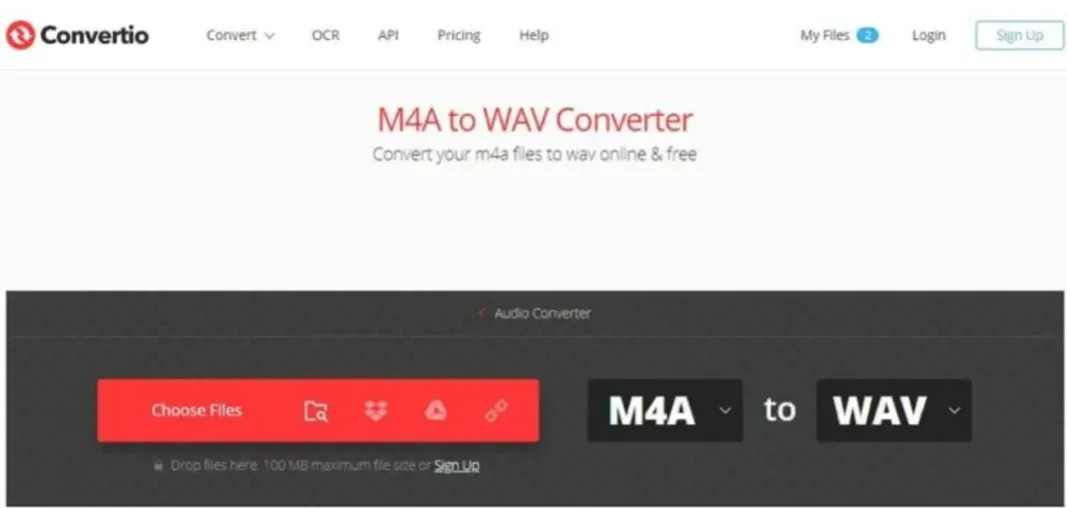
Audio files come in different formats, and each format has its own advantages. M4A is commonly used for storing digital audio, while WAV is widely preferred for editing, recording, and professional audio production. If you need to work with audio in different applications, converting M4A files into WAV format can make your workflow easier.
An online m4a to wav converter is a convenient solution for changing audio formats without installing additional software. Convertio provides a browser-based conversion process that allows users to upload audio files, select an output format, and download the converted file.
This guide explains what M4A and WAV formats are, why you might need to convert between them, and how to use Convertio step by step.
What Are M4A and WAV Audio Formats?
Before converting an audio file, it is helpful to understand the difference between these two formats.
M4A (MPEG-4 Audio) is an audio file format commonly associated with Apple devices and applications. It usually uses AAC or, in some cases, ALAC encoding. M4A files are often smaller than uncompressed WAV files, making them useful for everyday listening and storage.
WAV (Waveform Audio File Format) is an audio format commonly used in professional recording, editing, and production environments. It can store uncompressed audio, preserving the original audio data without the quality loss associated with lossy compression.
| Feature | M4A | WAV |
| File size | Usually smaller | Usually larger |
| Compression | Often compressed | Commonly uncompressed |
| Audio quality | Depends on encoding | Preserves audio data when uncompressed |
| Compatibility | Widely supported | Widely supported |
| Common use | Music and everyday listening | Recording and audio editing |
Why Convert M4A to WAV?
There are several reasons why someone might want to convert an M4A audio file into WAV format.
- Better Compatibility with Audio Software
Some audio editing programs, recording applications, and production tools work more conveniently with WAV files. Converting an M4A file can help when a particular application does not support the original format.
- Easier Audio Editing
WAV is commonly used in audio production because it can store uncompressed audio. This makes it a practical format for editing, mixing, and working with recordings.
- Support for Professional Workflows
Sound designers, content creators, and music producers often use WAV files when preparing audio for editing or production. Converting an M4A recording can help make it suitable for these workflows.
- Preserve Audio Data During Editing
When an M4A file uses lossy compression, converting it to WAV does not restore audio information that was already lost. However, WAV can preserve the decoded audio without adding another lossy compression step.
How to Convert M4A to WAV Online Using Convertio
Convertio makes it possible to convert audio files directly through a web browser. You do not need to install a separate audio conversion program on your computer.
Follow these simple steps to convert your M4A file into WAV format.
Step 1: Open the Convertio Website
Visit the Convertio M4A to WAV converter page. You will see an upload option where you can select the audio file you want to convert.
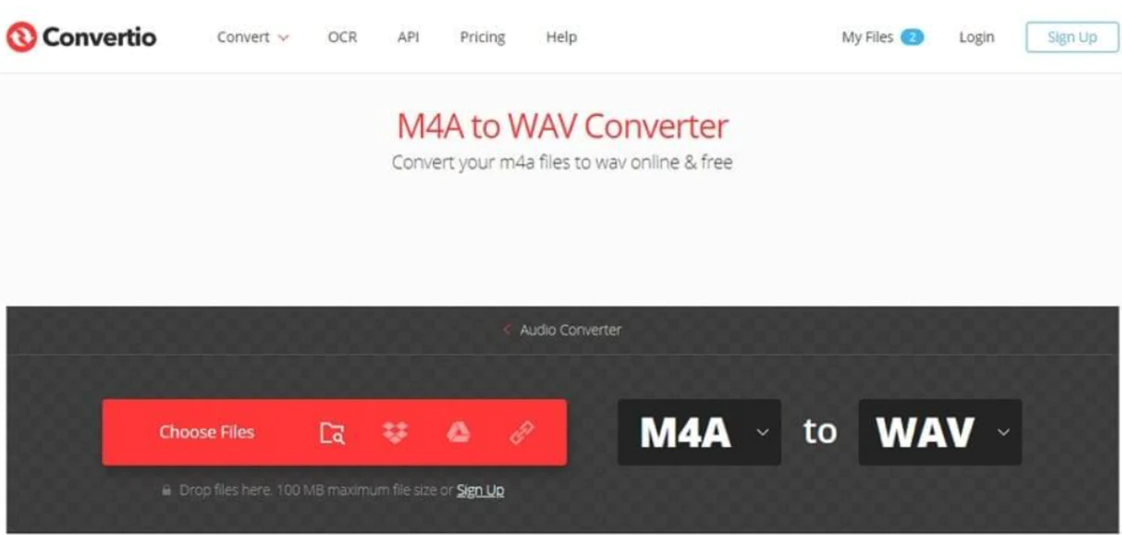
Step 2: Upload Your M4A File
Click the Choose Files button and select an M4A audio file from your computer. You can also import files from supported cloud storage services, such as Google Drive and Dropbox.
Wait until the file finishes uploading before moving to the next step.
Step 3: Select WAV as the Output Format
After uploading your audio file, check that WAV is selected as the output format. Convertio also provides advanced audio settings, including codec, audio channels, and sample frequency.
For most users, the default settings are a convenient starting point. If you have specific requirements for an audio editing project, you can adjust these settings accordingly.

Step 4: Start the Conversion
Click the Convert button to begin processing your audio file. Convertio will handle the conversion online. The processing time may vary depending on the file size and internet connection.
Step 5: Download Your WAV File
Once the conversion is complete, click the Download button to save the WAV file to your device. You can then open it in a compatible media player or audio editing application.

Key Features of Convertio M4A to WAV Converter
Convertio offers several useful features that make online audio conversion straightforward.
| Feature | Description |
| Online conversion | Convert audio files through a browser |
| Simple interface | Easy upload, format selection, and download |
| Cloud storage support | Import files from supported cloud services |
| Audio settings | Customize codec, channels, and frequency |
| Multiple platforms | Use the tool on computers and mobile devices |
| Multiple file conversion | Upload and process more than one file |
These features make Convertio a practical option for people who need to change audio formats without working with complicated software.
Tips for Getting the Best Results When Converting M4A to WAV
Before converting your audio files, consider the following tips:
- Keep the original file: Always save a copy of your M4A recording before conversion.
- Check the sample rate: Choose a sample rate that matches the requirements of your audio project.
- Select the correct channels: Keep mono or stereo settings according to the original recording and your intended use.
- Check available storage: WAV files are generally larger than compressed M4A files, so make sure your device has enough space.
- Listen to the converted file: Play the downloaded audio to confirm that it works correctly.
Remember that converting a compressed M4A file into WAV does not restore audio information that was lost during the original compression. WAV provides an uncompressed output, but its quality still depends on the source recording.
M4A vs WAV: Which Format Should You Choose?
Both formats have different purposes, so the right choice depends on how you plan to use your audio.
| Situation | Recommended Format |
| Saving storage space | M4A |
| Everyday music playback | M4A |
| Audio editing | WAV |
| Recording and production | WAV |
| Sharing smaller audio files | M4A |
| Working with uncompressed audio | WAV |
If you mainly listen to music or want to save storage space, M4A is a suitable option. However, if you are preparing audio for editing, mixing, or other production tasks, WAV may be more convenient.
Is It Safe to Convert M4A Files Online?
Online converters provide convenience, but it is important to consider file privacy before uploading audio recordings.
Convertio states that uploaded source files are deleted after processing and converted files are removed within 24 hours. However, you should still avoid uploading confidential recordings or private audio unless you are comfortable with the service’s privacy practices.
For personal or sensitive recordings, review the platform’s privacy policy before using an online conversion service.
Frequently Asked Questions (FAQs)
- Can I convert M4A to WAV for free?
Yes. Convertio provides an online M4A to WAV conversion option. Free usage may have file-size and usage limitations depending on the plan.
- Do I need to install software to convert M4A to WAV?
No. Convertio works through a web browser, so you do not need to install a separate conversion program.
- Will converting M4A to WAV improve audio quality?
Not necessarily. WAV can preserve the decoded audio without additional lossy compression, but it cannot recover information already lost from a compressed M4A recording.
- Can I convert M4A files on my mobile phone?
Yes. You can access Convertio through a compatible mobile browser and upload audio files from your device.
- Why is my WAV file larger than the original M4A file?
M4A files commonly use compression to reduce storage requirements, whereas uncompressed WAV files contain more audio data. Therefore, the converted WAV file can be considerably larger.
- Can I convert multiple M4A files into WAV format?
Convertio supports uploading multiple files for conversion. This can save time when preparing several audio recordings.
Converting M4A to WAV is useful when you need an audio format that works conveniently with editing applications, recording software, and production workflows. Although WAV files generally require more storage space, their uncompressed audio format makes them a popular choice for professional audio tasks.
Convertio offers a straightforward online solution for this process. With its simple interface, adjustable audio settings, and browser-based functionality, users can upload M4A recordings, convert them into WAV format, and download the finished files without installing additional software.
About the author
Angie Tusha is a content writer at Digital Media Solutions. She writes about online tools, document formats, file conversion, and everyday technology. She enjoys turning technical information into clear, practical content that helps readers understand digital tools and use them more confidently. Her writing focuses on providing useful information, simple explanations, and solutions to common digital tasks.