As you use your Windows computer, the operating system and applications create temporary files for short-term use. While essential for smooth operation, these files accumulate over time. This buildup can consume valuable disk space and potentially slow down your PC.
Clearing these files is a maintenance task that can improve performance.
This guide details five distinct methods to safely delete temporary files on both Windows 11 and Windows 10. We cover everything from a user-friendly Settings app to the Command Prompt for advanced users.
By the end, you will be able to confidently reclaim storage space and keep your system running efficiently.
To follow this tutorial, you only need access to your Windows PC. Most methods work with standard user permissions, but some, like cleaning system-level files, may require administrator rights. No third-party software is needed, as we will only use built-in Windows tools.
We will start with the most recommended graphical methods before moving to manual and command-line options. The methods include using the Settings app, configuring Storage Sense, using the Disk Cleanup tool, clearing folders in File Explorer, and running a command in the Command Prompt.
What Are Temporary Files in Windows?
Temporary files, often with a .tmp extension, are created by Windows and applications to hold data while a task is being performed. For example, a word processor might create a temp file to back up your document as you type. Once a program is closed, these files should be deleted, but they are often left behind.
How to Delete Temporary Files Using the Settings App (Recommended for Beginners)
This method is recommended for most users because it provides a clear, visual interface. It helps prevent the accidental deletion of important files by showing exactly what is taking up space.
Difficulty: Beginner; Time: 3-5 minutes.
-
Open Windows Settings
Press the Windows key + I on your keyboard to open the Settings app. You can also open it from your Start Menu by clicking the gear icon. The main Settings window will appear.

-
Navigate to Storage Settings
In the Settings window, click on the System category. From the next screen, select Storage from the list on the right. This action takes you to the Storage page, where you can see a breakdown of your disk usage.

-
Access Temporary Files
Allow a moment for Windows to analyze your drive. This step may take a few moments, which is normal for larger hard drives. Once the categories are populated, click on Temporary files to see a detailed view.

-
Select Files for Deletion
Windows presents a list with pre-selected items that are safe to delete. Review this list carefully.
⚠️ WARNING: Be extremely cautious with the Downloads checkbox. If you select it, everything in your personal Downloads folder will be permanently deleted.

-
Remove the Files
After confirming your selections, click the Remove files button. Windows will begin the cleanup process. The process is complete when the progress indicator disappears. You have successfully freed up disk space.


How to Automatically Delete Temporary Files with Storage Sense
Storage Sense is a proactive, “set it and forget it” feature that automates cleanup. This is the ideal method if you prefer not to perform manual cleanups regularly. Difficulty: Beginner; Time: 3-5 minutes to configure.
-
Navigate to Storage Sense
First, open Settings and go to the System > Storage page by following steps 1 and 2 from the previous method. On the Storage page, click the Storage Sense option to open its configuration screen.

-
Enable Automatic Cleanup
To activate the feature, turn on the toggle switch for Automatic User content cleanup. This enables Windows to monitor and clean your disk space automatically based on your chosen schedule.
Use the dropdown menus to define when Storage Sense should run. You can have it run daily, weekly, monthly, or only when your disk space is low. You can also set rules for how long to keep files in the Recycle Bin and Downloads folder.
-
Run Storage Sense Now
To perform an immediate cleanup, scroll to the bottom of the page and click the Run Storage Sense now button. This will apply your settings and clear files right away. A confirmation will report how much space was freed.


How to Delete Temporary Files Using the Classic Disk Cleanup Tool
The Disk Cleanup tool is a legacy Windows utility that remains a reliable way to remove junk files. It is a good alternative for users familiar with older versions of Windows.
Difficulty: Beginner; Time: 5-7 minutes.
-
Open Disk Cleanup
Click the Start button, type Disk Cleanup into the search bar, and select the app from the results. A small window will pop up asking you to select the drive to clean, which is typically the (C:) drive.

-
Scan for System Files
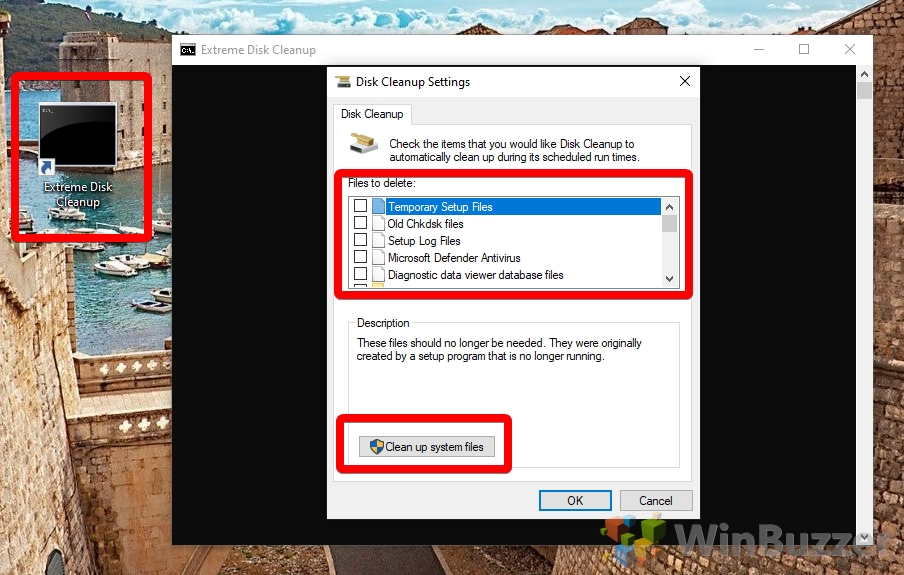
After a quick initial scan, the main tool window will open. To find more files, click the Clean up system files button.
⚠️ Note: This action requires administrator privileges and will restart the scan to look for files like old Windows Update backups.
-
Select Files and Start Cleanup
Once the scan is complete, scroll through the Files to delete list. Check the boxes next to categories like Temporary files, Thumbnails, and Temporary Internet Files. When you are ready, click OK.

-
Confirm Deletion
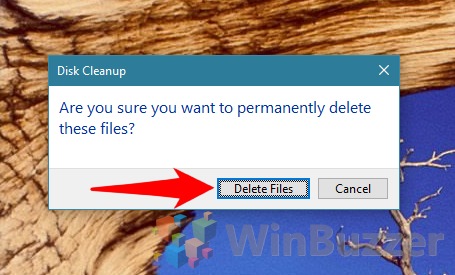
A final confirmation box will appear. Click the Delete Files button to proceed. This process can take several minutes, so please be patient. After a large cleanup, it is a good practice to restart your computer.



How to Delete Temporary Files Manually with File Explorer
This method gives you direct control over the folders where temporary files are stored. For best results, close all open applications before proceeding to minimize locked files.
Difficulty: Intermediate; Time: 5-7 minutes.
-
Open the User Temp Folder
Press Windows key + R to open the Run dialog. In the box, type %temp% and press Enter. This command opens your user-specific temporary files folder in File Explorer.

-
Select and Delete All Files
Once the folder is open, press Ctrl + A to select all of its contents. With everything selected, press the Delete key. Alternatively, you can click the trash can icon in the File Explorer toolbar.

-
Skip Files in Use
A dialog box will likely appear stating that some files cannot be deleted because they are in use. This is normal. Check the box that says Do this for all current items and then click the Skip button.

-
Clear the System Temp Folder (Optional)
For a deeper clean, you can also clear the system-wide temp folder. Open File Explorer and navigate to C:\Windows\Temp. You may need administrator rights. Repeat the process of selecting all, deleting, and skipping any files that are in use.

-
Empty the Recycle Bin
After deleting the files, they are moved to the Recycle Bin. To permanently remove them, find the Recycle Bin on your desktop, right-click it, and select Empty Recycle Bin. Confirm the action to complete the process.

How to Delete Temporary Files Using the Command Prompt (For Advanced Users)
This method is the fastest way to delete temporary files, but it offers no safety nets, so it is crucial to type commands exactly as shown. Before you begin, close any running programs.
Difficulty: Advanced; Time: 3-5 minutes.
-
Open Command Prompt as Administrator
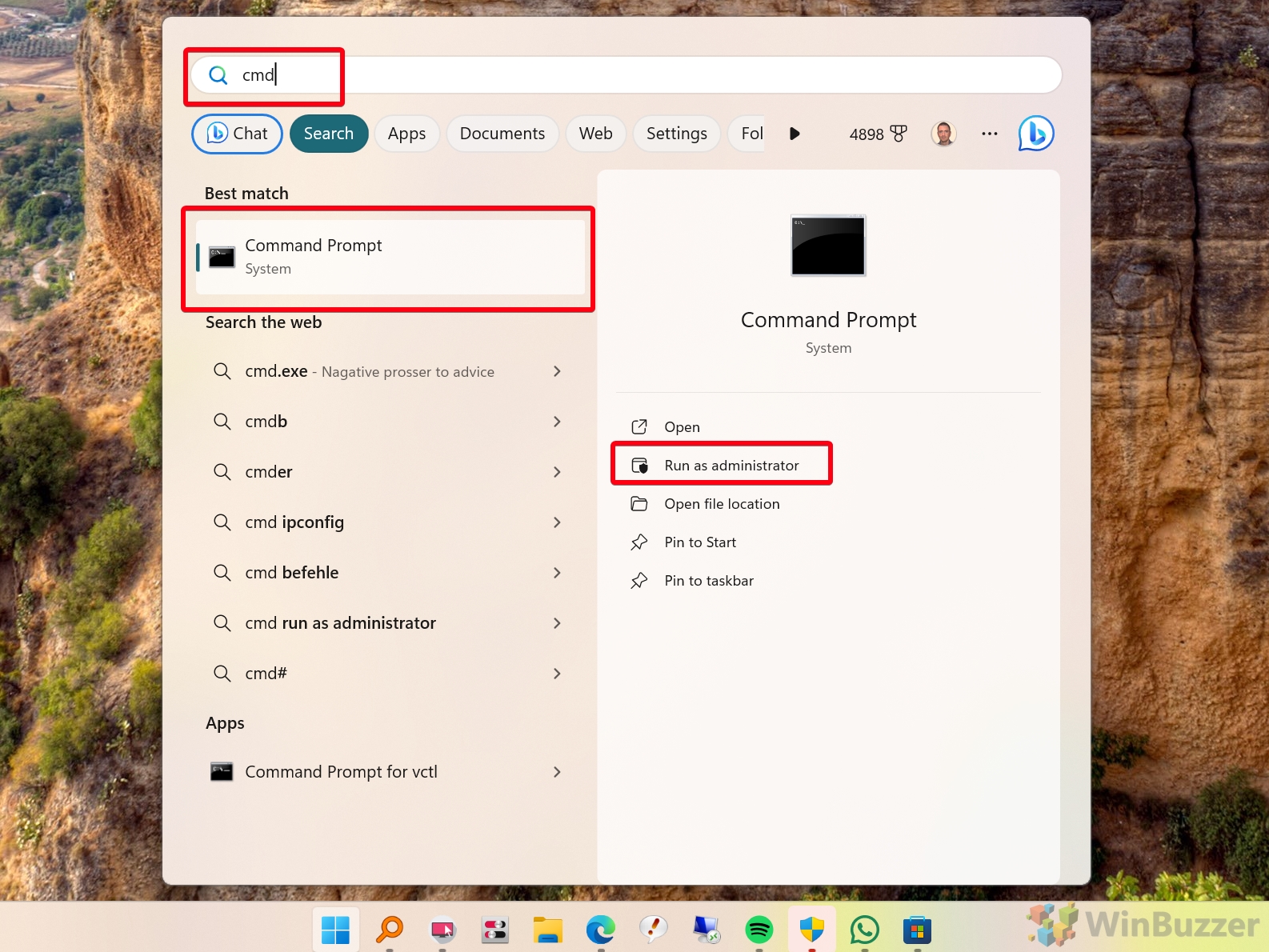
Click the Start button, type cmd, then right-click on the Command Prompt result and choose Run as administrator. This ensures the command has the necessary permissions.

-
Run the Deletion Command for User Temp Files
In the Command Prompt window, carefully type or paste the following command and press Enter:
del /q /f /s %TEMP%\*This command deletes all files in your user temp folder quietly and forcefully.
-
Run the Deletion Command for System Temp Files
To also clear the system temp folder, enter this second command and press Enter:
del /q /f /s C:\Windows\Temp\*You may see a few “Access is denied” messages for locked files, which is normal.
FAQ – Frequently Asked Questions About Deleting Temporary Files on Windows
How often should I delete temporary files?
For most users, deleting temporary files once every few months is sufficient. If you are low on disk space or notice performance issues, you might do it more frequently. Using the automated Storage Sense feature is the easiest way to handle this regularly.
Will deleting temporary files remove my personal documents or photos?
No, these methods target specific temporary folders and will not touch your personal files in folders like Documents or Pictures. The only exception is the “Downloads” folder, which you must be careful not to select in the Settings app or Storage Sense.
What is the difference between the user %temp% and system C:\Windows\Temp folders?
The user temp folder (%temp%) stores files created by applications running under your specific user account. The system temp folder (C:\Windows\Temp) is for files created by the operating system or services that run for all users. Both can be safely cleaned.
Does deleting temporary files also clear my browser cache?
Partially. The “Temporary Internet Files” category will clear some browser cache. However, modern browsers also manage their own extensive caches. These are best cleared from within the browser’s own settings for a complete removal.
Why is Storage Sense not running automatically?
If Storage Sense isn’t running, check its configuration. It may be set to run only “During low free disk space,” and your computer may not have reached that threshold. You can change the schedule to run more frequently, like “Every week,” to ensure it runs.
Why are some temporary files not deleted?
If a temporary file is being used by a running application or a Windows process, it becomes “locked,” and you cannot delete it. This is normal behavior to prevent system instability. You can safely skip these files.
Are there any privacy risks to keeping temporary files?
Yes, temporary files can contain sensitive information, such as fragments of documents, browsing history, or cached website data. Regularly clearing them is good practice for maintaining your digital privacy.
My C: drive is still full after deleting temporary files. What else can I do?
Temporary files are only one source of clutter. If your drive is still full, consider uninstalling unused applications, moving large files to an external drive, or using Disk Cleanup to remove old Windows Update files and previous Windows installations.
Related: How to Use Windows Disk Cleanup in Classic and Extended Mode to Free up Space
Running Disk Cleanup in Windows can free up space by deleting files that you don’t need. The most savings are often found by deleting previous Windows installations and files left in the recycle bin, but it also looks for temporary internet files, thumbnails, error reports, and more. In our other guide, we show you how to use the tool in both its classic and extended modes to find even more files to delete.